File browser (SFTP)
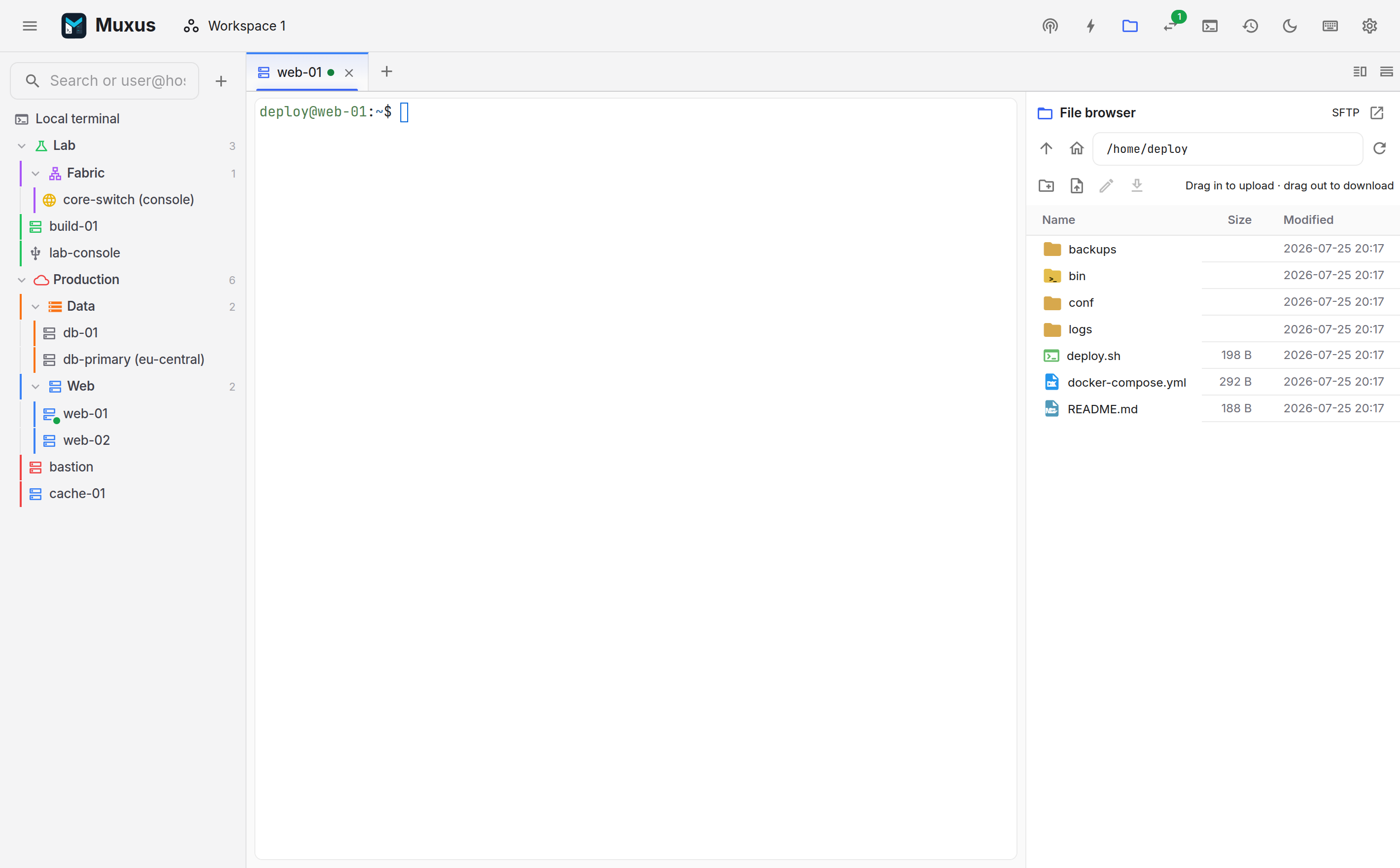
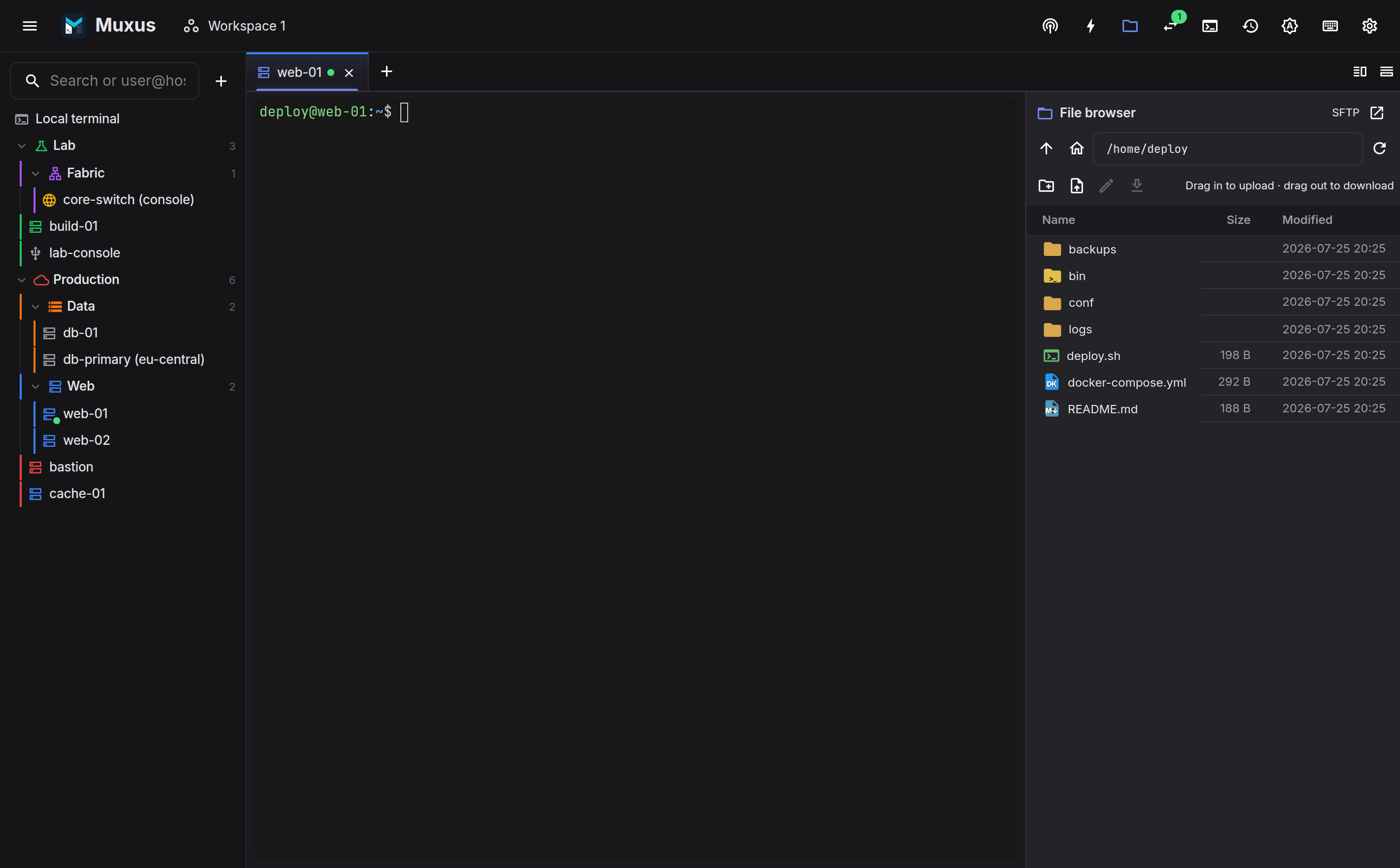
Every SSH tab can display the remote filesystem beside its terminal. The browser uses the session's existing SSH transport, with one SFTP channel per connection shared by every file operation, so no second connection or authentication is required.
Navigating
- The path field is editable. Enter a path and press Enter.
- goes to the parent directory, to the remote home directory, and re-reads the current directory.
- Double-click a directory to enter it. Sorting is by name, size or modification time.
- Follow terminal folder is enabled by default. The browser opens at the shell's current
directory and follows later
cdcommands; clear it to browse independently. - Open in new window moves the browser into its own window on the same connection.
Docking it in the sidebar
By default the browser opens beside the terminal, separately for each SSH tab. It can live in the sidebar instead, one browser for the whole window that shows the files of whichever SSH session is active:
- Click Move to the sidebar in the browser's header, or choose Sidebar for File browser under Settings → Appearance → Layout.
- The sidebar gains vertical tabs along the window edge: Hosts and File browser. Click one, or use the arrow keys once a tab has focus. The folder button in the top bar switches to the file browser and back.
- Switching to another SSH tab shows that session's files. A local, Telnet, serial or remote desktop tab has none, and the browser says so.
- The browser stays where it was while the hosts are in front, so an upload keeps running and the folder is unchanged when you switch back.
- Move beside the terminal in the header puts it back next to the terminal.
In a narrow sidebar the Modified column and the drag hint are hidden; widen the sidebar by dragging its edge to bring them back.
Transferring
| Gesture | What it does |
|---|---|
| Drag files in | Upload them to the current directory |
| Drag a file out | Download it to the drop location |
| Upload with a file picker | |
| Download the selected files | |
| Double-click a file | Open it in the remote editor |
Uploads and downloads report progress, and large transfers do not block the terminal in the same tab.
Downloading several files asks once for a folder and saves them all there. A file of the
same name already in the folder is kept, and the new one is numbered, as in
report (1).txt. Browsers that cannot write to a folder, such as Firefox and Safari, save
the files to their downloads folder instead. Dragging out takes one file at a time.
Overwrite confirmation
Uploading onto an existing path asks for confirmation and names the file it would replace.
Dropping files onto the terminal
Files and folders dropped onto an SSH terminal are uploaded into the shell's current directory, without opening the file browser. While you drag, the terminal names the target, for example Upload to /home/admin/project.
- The directory is the one the shell last reported, so it follows
cd. Bash and zsh report it through Muxus's shell integration, and any shell that sends OSC 7 works too. Without a report, files go to the home directory. - Several files and whole folders can be dropped at once; folders arrive with everything inside them, empty subfolders included.
- The upload uses the session's own connection, so there is no second login. Progress shows in the file browser when it is open for that session, otherwise in a card in the bottom-left corner of the window, with Cancel. The usual overwrite confirmation applies.
- A host without SFTP (console compatibility mode or Disable SFTP and shell integration only) shows SFTP is disabled for this host instead of uploading.
- Telnet, serial and remote desktop tabs do not take dropped files.
In the desktop app, hold Shift while dropping onto an SSH terminal to type the local paths at the prompt instead of uploading. Shift is used on every platform because Ctrl, Alt, Option and Cmd already choose between copying, moving and linking in file managers. Dropping onto a local terminal always types the paths.
Selecting several files
Click a row to select it. Ctrl + click (Cmd + click on macOS) adds a row or takes it out again, Shift + click selects every row from the one clicked last, and Ctrl+A (Cmd+A) selects the whole folder. Esc or a click on the empty space below the rows clears the selection. The toolbar shows how many rows are selected.
With several rows selected, downloads every selected file, and the row menu of a selected row offers Download for the files and Delete for all of them. Del (Cmd+Backspace on macOS) deletes the selection too. Folders are skipped by downloads.
Managing
The row menu, opened with right-click, has Open in editor, Open with default program, Open with…, Download, Compare with…, Rename and Delete. The toolbar adds New folder. Deleting a directory removes its contents and is confirmed first.
Compare with… compares the file with another file on a connected session, a local file, a terminal's output or a history record. See Comparing.
Opening files with local programs
In the desktop app, a file can be opened with a program on your computer without
downloading it by hand first: an HTML page in the browser, an image in a viewer, a
.drawio diagram in draw.io.
- Open with default program uses the program your system opens that type of file with.
- Open with… lets you choose. Windows shows its own How do you want to open this file? dialog, and macOS asks for an application. On Linux, Muxus lists the installed programs, with those that handle the file's type at the top; Browse… picks any other program, such as an AppImage.
The file is downloaded with the usual progress bar into a private folder of its own, then
handed to the program. On Linux these copies are kept under .muxus-open in your Downloads
folder, where sandboxed snap applications can read them; on Windows and macOS they are kept
in the temporary folder. On Windows, the copy carries the same downloaded-from-the-internet
mark as a browser download. Copies untouched for a day are removed the next time Muxus
starts or opens a file.
Uploading your changes
When the program saves the file, Muxus asks Upload changes to file? and uploads it back to the same path, with a progress card in the bottom-left corner of the window. Tick Upload later changes to this file without asking to have later saves uploaded straight away. Saves that leave the contents unchanged are not offered.
If the file on the server changed after you opened it, Muxus does not overwrite it silently: it asks before replacing that version with yours. The upload needs the session that opened the file; once that connection has closed, Muxus tells you where your copy is so you can upload it by hand.
Transfer safety
Uploads are written to a temporary name in the destination directory and then renamed into
place, so an interrupted transfer cannot leave a partially written file at the destination
path. Where the server supports it, the atomic posix-rename extension is used.
The SFTP channel belongs to the connection rather than the panel. Closing the browser leaves it available for the remote editor, and closing the tab releases it with the rest of the session's lease.