Your hosts
The sidebar lists every concrete Host block in the OpenSSH configuration, including files
pulled in with Include, together with SSH, Telnet, serial, RDP, VNC, gNMI and NETCONF hosts stored by Muxus.
Muxus does not import the configuration. It reads ~/.ssh/config directly and writes edits
back to the same file in place.
Import from MobaXterm
Open Settings → Backup & data → Import sessions to bring MobaXterm SSH, RDP and VNC
bookmarks into Muxus. On Windows, Find sessions reads bookmarks from the current user's local
MobaXterm installation. On every platform, you can choose MobaXterm.ini, .mxtsessions,
.mobaconf or a text export instead.
The review lists every detected session. Choose whether SSH hosts should stay in Muxus
app data only or be written as OpenSSH Host blocks, then select which sessions to include
and whether matching hosts should be kept or replaced. Muxus
preserves the display name, host, port, username, private key, SSH gateway (jump host),
execute command and the SubRep folder hierarchy. Sessions without a private key ask for a
password. An execute command becomes the host's startup command in a terminal; with Do not
exit after command ends, your login shell takes over when it finishes. The command is
imported exactly as written, including anything typed into it.
Each distinct SSH gateway becomes one jump host in a MobaXterm jump hosts folder, with
its own user, port and key; multi-hop gateways chain those jump hosts in order. SSH sessions
jump through it, and RDP and VNC sessions use it as their SSH gateway. MobaXterm's
_ProfileDir_, _MyDocuments_ and _CurrentDrive_ key paths become ~, ~/Documents and
C:.
Passwords are not copied, and private keys are referenced where they are rather than copied. Muxus asks for credentials when you connect.
Import from SecureCRT
In SecureCRT, choose Tools → Export Settings, include Sessions and Button Bars, and save the XML export. Excluding saved credentials, keys and session passwords there is recommended, since Muxus does not read them anyway. Then open Settings → Backup & data → SecureCRT import in Muxus and choose that file. The review preserves nested folders, offers Muxus-only or OpenSSH storage for SSH sessions, and lets you select individual sessions and button bars, or keep and replace matching hosts and groups.
Muxus imports SSH names, hosts, ports, usernames and password-vs-key authentication intent.
Telnet sessions keep their host and port. Serial sessions include their device path, baud
rate, data bits, stop bits, parity and flow control. SecureCRT's Default session templates
are not hosts and are left out. Local-shell sessions, incomplete entries and protocols Muxus
cannot represent are listed as skipped.
Button bars
Each SecureCRT button bar becomes a command button group with the same name; if a group of that name already exists, the import is named Name (SecureCRT). SecureCRT's own Default bar is the exception: while the Muxus Default group has no buttons of yours, its commands go straight into that group. Otherwise it becomes a Default (SecureCRT) group, so your commands and the imported ones stay apart. A host whose session used a bar other than Default shows that group in the command bar, as if a group per host had been set.
Send String buttons are converted to the literal text they type:
| SecureCRT | Muxus |
|---|---|
\r, \n, \r\n |
A line break, sent as Enter. A final one turns on Run immediately; without it the command is only inserted at the prompt. |
\t, \b, \e, \\, \nnn (octal) |
The tab, backspace, escape, backslash or octal character itself |
\p (pause), \v (clipboard), \u, \c, \i, \a, \m, \l (client values) |
Removed, with a note in the review |
Menu functions, scripts, applications and other button types have no Muxus equivalent and are listed as skipped under their bar. Importing the same bar again keeps or replaces its commands as a whole; replacing removes only commands that came from that bar, so buttons you added to the Default group yourself stay.
Only connection metadata under the XML export's Sessions section and the ButtonBarV5
bars are read. Encrypted password fields and logon actions, private-key paths, embedded
files, scripts, terminal appearance and global SecureCRT settings are never imported.
Host rows
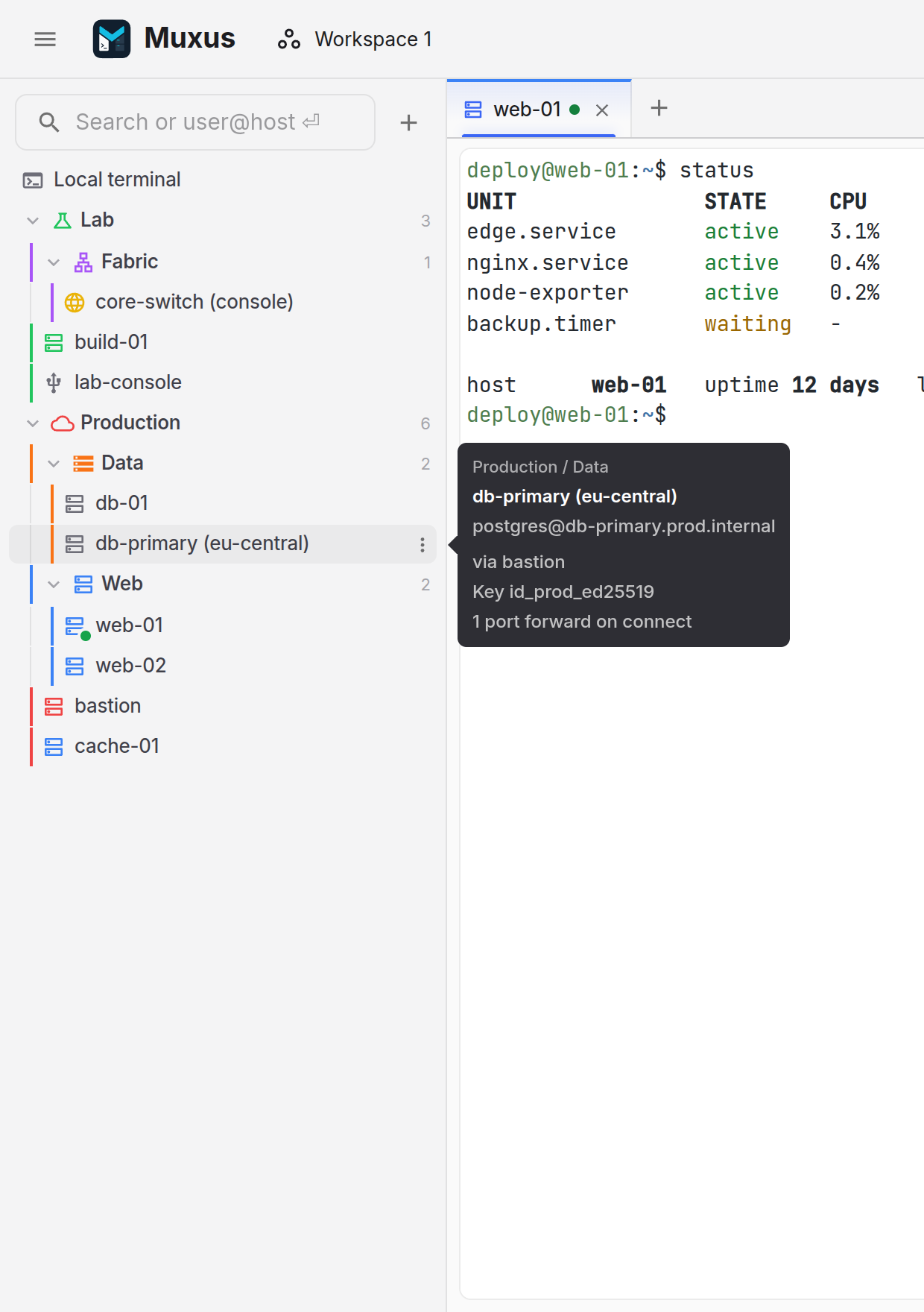
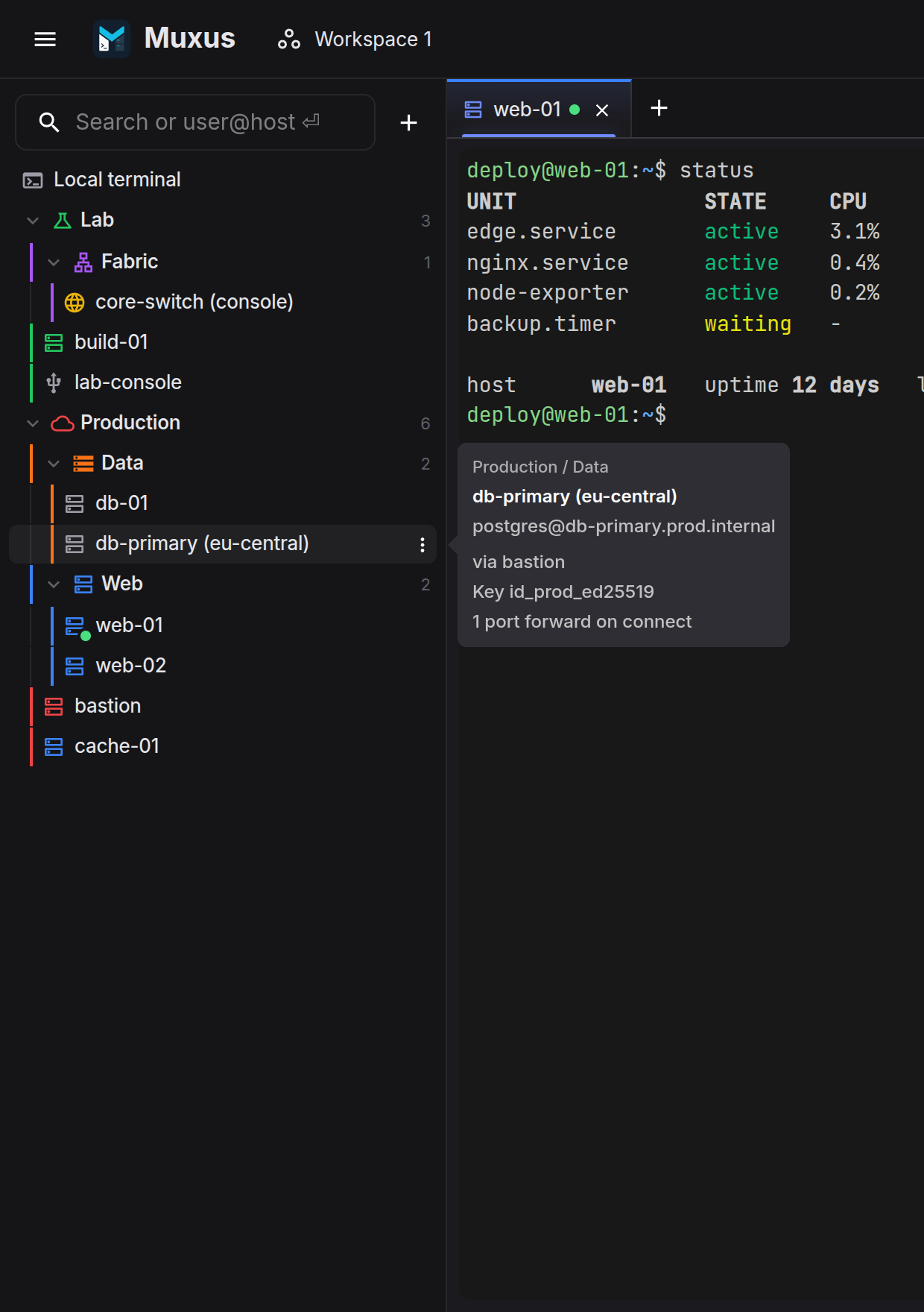
A row shows the host name, a host-kind icon (SSH, Telnet, serial, RDP, VNC, gNMI, NETCONF), an optional colour flag, and a green dot while a session to that host is live, with a count when there is more than one.
The hover card carries the connection details:
- the address it resolves to (
user@hostname:port), - the jump chain, if the block has
ProxyJump, - the key that will be offered,
- password authentication when the block forces it,
- the number of port forwards started with the connection.
Click a row to connect. If the host already has tabs in the window, the click lists them instead, the way a taskbar button lists an app's open windows. Each entry shows the tab's title and number, its state, the remote working directory and the last lines of output, so sessions with the same name can be told apart. Pick one to jump to it (an ended session reconnects in place), or choose New session. A middle-click skips the list and opens another session straight away. Shift + click selects every host from the last one clicked to this one, without connecting.
Opening with a double-click
To open hosts with a double-click instead, set Open hosts with to Double-click under Settings → Behavior. A single click then selects the host, as in a file manager: Ctrl + click (Cmd + click on macOS) adds or removes one, Shift + click selects the range from the last host clicked, and clicking empty space below the list clears the selection. A double-click connects, or lists the host's open tabs as above, and Shift + double-click opens another session. Enter and middle-click still open straight away. Folders keep opening and closing on a single click, so a double-click toggles them only once, and the Local terminal rows wait for a double-click as well.
The right-click menu has Connect, Open in new window,
Move up/down, Move to folder…, Organize & color…, Edit host,
Duplicate, Copy ssh … command and Delete host. Connect always opens a
new session. On a host that is part of a selection, moving and deleting apply to the whole
selection (Move n selected hosts…, Delete n selected hosts), and the menu also
offers Edit n selected hosts….
Folders
Folders are stored in the local database next to the host colour, not in ssh_config.
Hosts without a folder are grouped by the file they were defined in.
- Create a folder by right-clicking empty space in the sidebar → New folder, or nest one inside another from a folder's menu.
- Fill it by dragging hosts in, or from a host's Move to folder…. Dragging one selected host brings every selected host along.
- Style it with Rename, move & style…, which sets a colour and an icon (cloud, servers, storage, network, LAN, cluster, lock, lab, site).
- Reorder with drag & drop, or Alt+Up / Alt+Down on the focused row. Hosts keep the assigned order; folders sort alphabetically until moved.
- Collapse a folder and everything nested inside it in one action.
Deleting a folder does not delete hosts. They move up into the parent folder, and no connection setting changes.
Shared credentials
A folder can provide a default username, port, private key and password for every host inside it. Open Rename, move & style… and fill in the Shared SSH credentials section.
Precedence is always: the host's own settings first, then the nearest folder, then its
parents. OpenSSH-backed hosts also use anything resolved from ssh_config (including
Host * blocks) before consulting the folder. Muxus-only hosts do not read final-host
settings from ssh_config; only named ProxyJump hops can still resolve there. A folder
therefore fills gaps without replacing a value configured directly on the host.
The shared password is kept in the encrypted password vault and is tried automatically when a host falls back to password login; a password remembered for the host itself still wins. Folder credentials move with the folder when it is renamed or dragged, and deleting the folder deletes them.
Shared login sequence
The same dialog's Login sequence section sets a login sequence for every SSH, Telnet and serial host in the folder, nested folders included. A host that sets its own sequence, or No login sequence, keeps it; otherwise the nearest folder with a sequence wins, and a subfolder can choose No login sequence to switch its parent's off. The sequence moves with the folder like its credentials.
Launching a folder
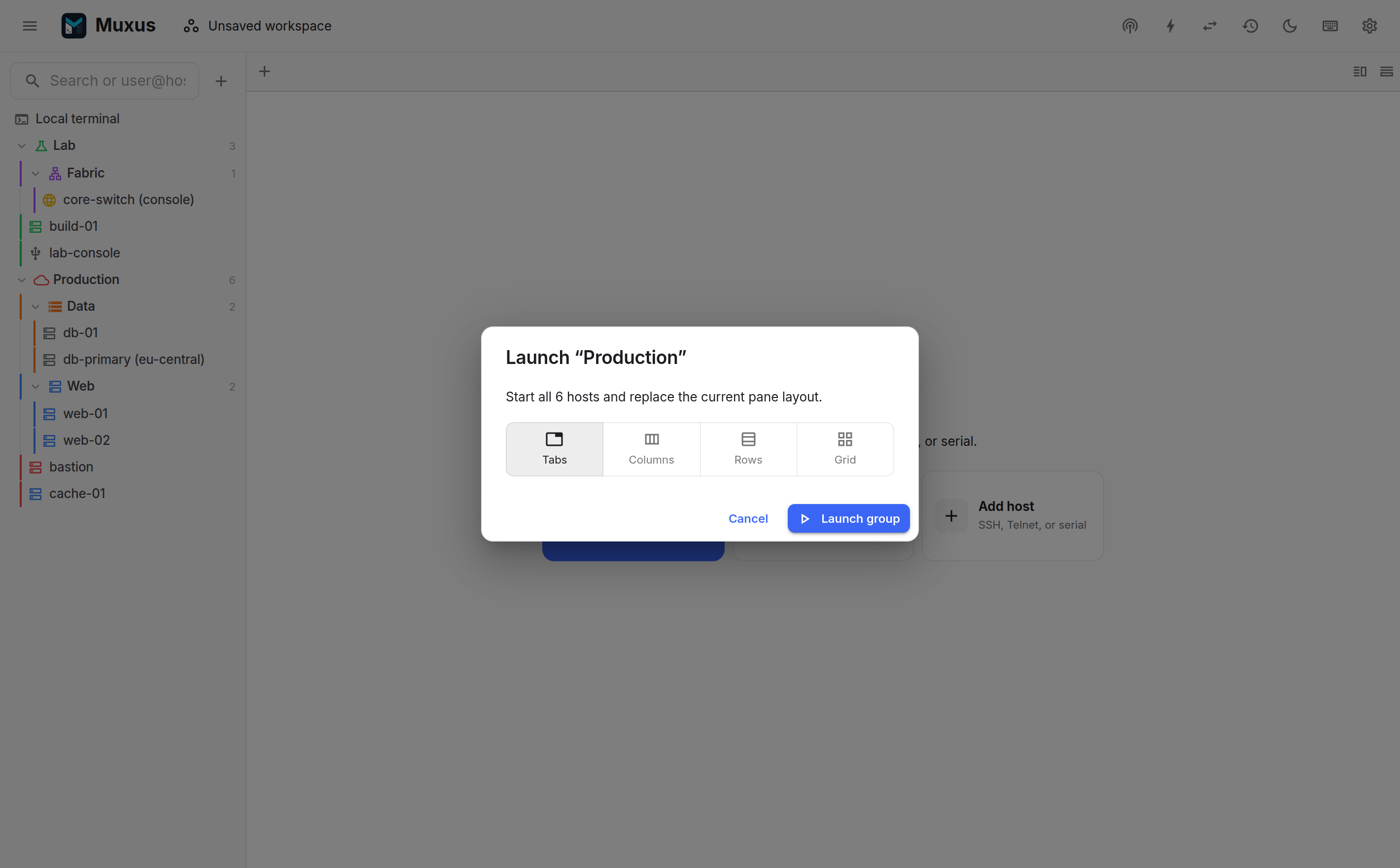
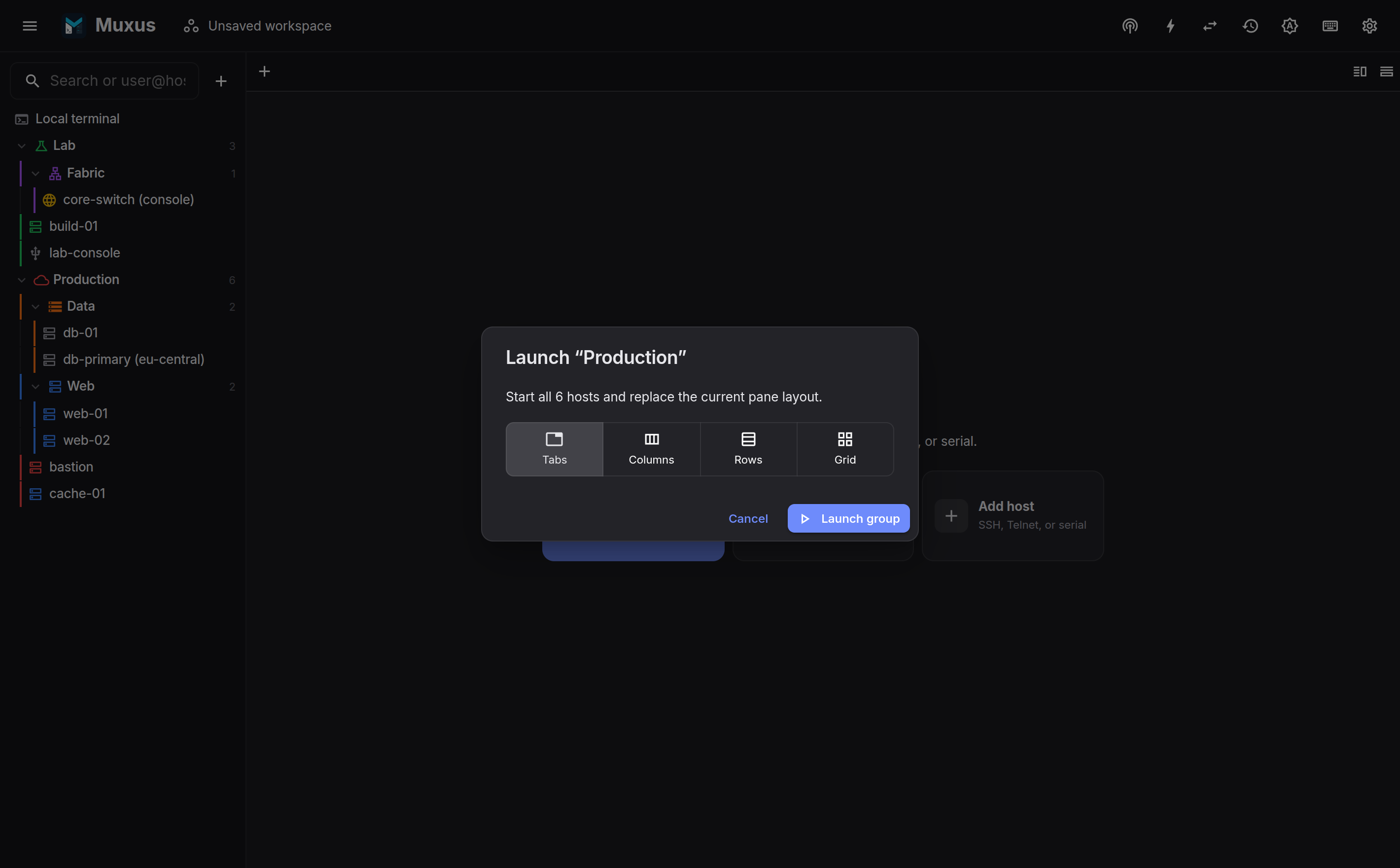
A folder's menu offers Launch n hosts…, which opens every host it contains, including nested folders, as tabs, columns, rows or a grid.
Editing several hosts at once
Ctrl + click a host (Cmd + click on macOS) to select it without connecting, and Shift + click selects every host between the last one clicked and this one. The host a plain click connected counts as clicked, so click one host and Shift + click another to select the whole range. When hosts open with a double-click, a plain click selects too. A bar under the list counts the selected hosts; Edit… opens the bulk editor, the folder button moves them all to a folder, the bin deletes them, and Esc or the bar's close button clears the selection. The selection stays while you search, so it can gather hosts from several queries.
A folder's menu offers Edit n hosts… for everything inside it, nested folders included, and a selected host's right-click menu offers Edit n selected hosts…, Move n selected hosts… and Delete n selected hosts.
Dragging a selected host drags the whole selection, including hosts inside collapsed folders, and they land together, in the order they had in the list. A host that is not selected drags on its own.
Deleting several hosts asks once and names them. ssh_config hosts are removed with each
config file written once, so its .muxus.bak holds the contents from before the whole
delete; hosts stored in Muxus are removed from Muxus.
The bulk editor shows each setting the hosts share. Where they differ, the field reads Multiple values, and each host keeps its own value unless you choose one for all of them. Only the settings you change are written; everything else about every host stays as it was. Each changed setting says how many hosts it changes, with Undo to take it back, and hosts that already have every new value are skipped.
| Section | Settings | Applies to |
|---|---|---|
| Folder & color | Folder, colour | Every host |
| SSH connection | User, port, host verification, agent forwarding, X11 forwarding, console compatibility, SFTP | SSH hosts |
| Terminal appearance | Colour scheme, text and background colour, command button group, paste delays, waiting for the prompt, anti-idle, keys and echo | SSH, Telnet and serial hosts |
| Highlighting | Highlighting profile, global rules | SSH, Telnet and serial hosts |
| Session logging | Logging policy for new sessions | SSH, Telnet and serial hosts |
| Login sequence | One sequence for every host, none, or each host's folder sequence again | SSH, Telnet and serial hosts |
In ssh_config, a bulk edit rewrites only the lines of the options it changes. Comments,
formatting and every other option in each Host block stay exactly as they were, and each
file is written once, so its .muxus.bak holds the contents from before the whole edit.
Emptying the user or port removes it from each host, which then falls back to Host * blocks
and folder credentials. A new highlighting profile keeps each host's
own keyword rules.
Search and quick connect
The box at the top of the sidebar both filters and connects.
Filtering is token-based: every whitespace-separated word must appear somewhere in the
host's searchable text (alias, hostname, user, description, display name or folder). af
tail matches MyAirframe1Tail inside the AF-Tails folder. Matching folders open while
you type and return to their previous collapse state when the box is cleared.
Enter connects to the highest-ranked match, which is highlighted in the tree. Ranking prefers an exact name over a prefix, a prefix over a substring, and a name match over an address or folder match.
Quick connect applies when nothing matches. Type user@host, host:port or
user@host:port and press Enter to dial it directly.
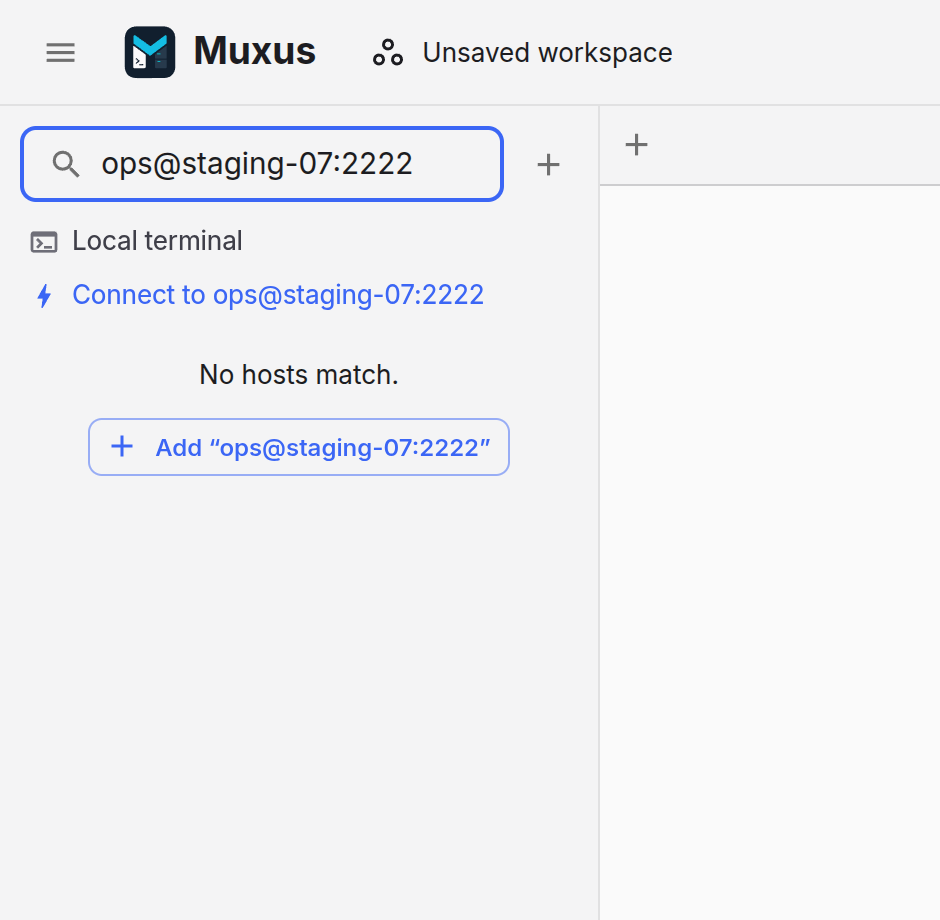
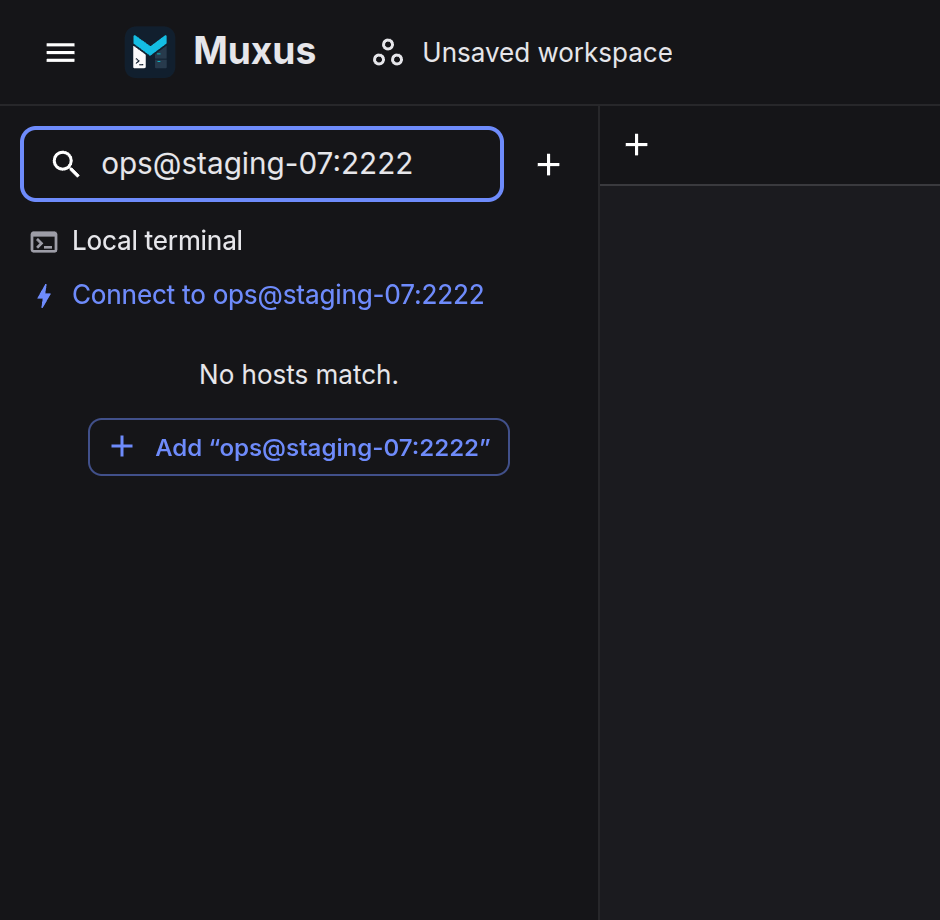
When a search matches nothing, the empty state offers to add what was typed, prefilled into the host editor.
Opening ssh:// and telnet:// links
The desktop app can open links such as ssh://admin@10.0.0.1:2222 or telnet://switch-01
from a browser, wiki, ticket or monitoring dashboard. Because this changes a system-wide
default, it is opt-in: open Settings → Behavior and press Use Muxus for ssh:// links
or Use Muxus for telnet:// links. Each row shows which program opens those links now.
To hand them back, choose another program in the system's default-application settings.
A link opens as a new tab in the Muxus window you used last, or starts Muxus first. When it names a host you already have, that host's settings are used:
- an
ssh://link whose host is an OpenSSH alias connects through thatHostblock, with a user or port in the link taking the place of the configured ones, likessh -p 2222 admin@alias; - otherwise a host whose host name and port (22, or 23 for Telnet, when the link has none) match is used. If several match, the link's user decides; if that still leaves more than one, Muxus does not guess;
- a Muxus-only host is used by its name or address only when the link's user and port fit it, because it always connects with its own saved fields.
Anything else connects like quick connect: ssh:// dials
[user@]host[:port] through the OpenSSH configuration, and telnet:// opens a Telnet
session to the host, on port 23 unless the link says otherwise.
| Link | Opens |
|---|---|
ssh://admin@10.0.0.1:2222 |
SSH to port 2222 as admin |
ssh://edge-router |
The edge-router host from ~/.ssh/config |
ssh://[2001:db8::1]:830 |
SSH to an IPv6 address |
ssh://admin;fingerprint=SHA256:…@10.0.0.1 |
SSH that only proceeds with that host key, see Host keys |
telnet://switch-01:2323 |
Telnet to port 2323 |
Links are checked before anything is dialed. Hosts and users are limited to the same plain
names as --connect, so a link cannot pass
options such as -oProxyCommand=… or reach a shell. A link with a password
(ssh://user:secret@host) is refused, since Muxus asks for passwords itself and links end
up in browser history. A path, query or fragment after the host is ignored, as are
connection parameters other than fingerprint. A malformed link, or one for another
scheme, shows an error notification instead of connecting.
On Linux, a Muxus installed from the .deb package registers its own desktop file. The
AppImage and a source checkout have no installed desktop file, so pressing the button
writes a hidden muxus-url-handler.desktop to ~/.local/share/applications that starts
that copy, and sets it as the default with xdg-mime. An AppImage whose path contains
spaces is started through a muxus-link-handler link in ~/.config/Muxus, since
xdg-open cannot read such a path. If the AppImage is moved, press the button again. On
Windows, the installer lists Muxus under Default apps; when Windows
keeps another choice, or for the Microsoft Store version, the button opens those settings
so you can pick Muxus there.
Keyboard
The tree is a treeview. Down from the search box moves into it, arrows walk and
expand rows, Enter connects, Esc returns to the search box, and Alt+Up /
Alt+Down reorder the focused host or folder among its siblings.
To select hosts from the keyboard, Shift+Space selects or deselects the focused host, Shift+Up / Shift+Down extend the selection, and Ctrl+A selects every visible host. Esc clears a selection before it returns to the search box.
Ctrl+B hides the sidebar. The quick launcher still reaches every host.
Local terminal
The first row is Local terminal, which opens a PTY running the login shell in a new
tab. The shell is configurable in settings; auto lets the server pick.