Quickstart
From a fresh install to a split-pane session on a host you already have, in about five
minutes. Muxus reads the ~/.ssh/config you already use, so if ssh myhost works in a
terminal, it works here.
1. Launch Muxus
Open the desktop app, or start it from source:
The window opens on an empty pane with your hosts in the sidebar on the left.
2. Find your hosts
Every concrete Host block in ~/.ssh/config is already there, grouped by the file it
came from, including the files pulled in with Include. Nothing is imported or copied; the
sidebar reads the file directly.
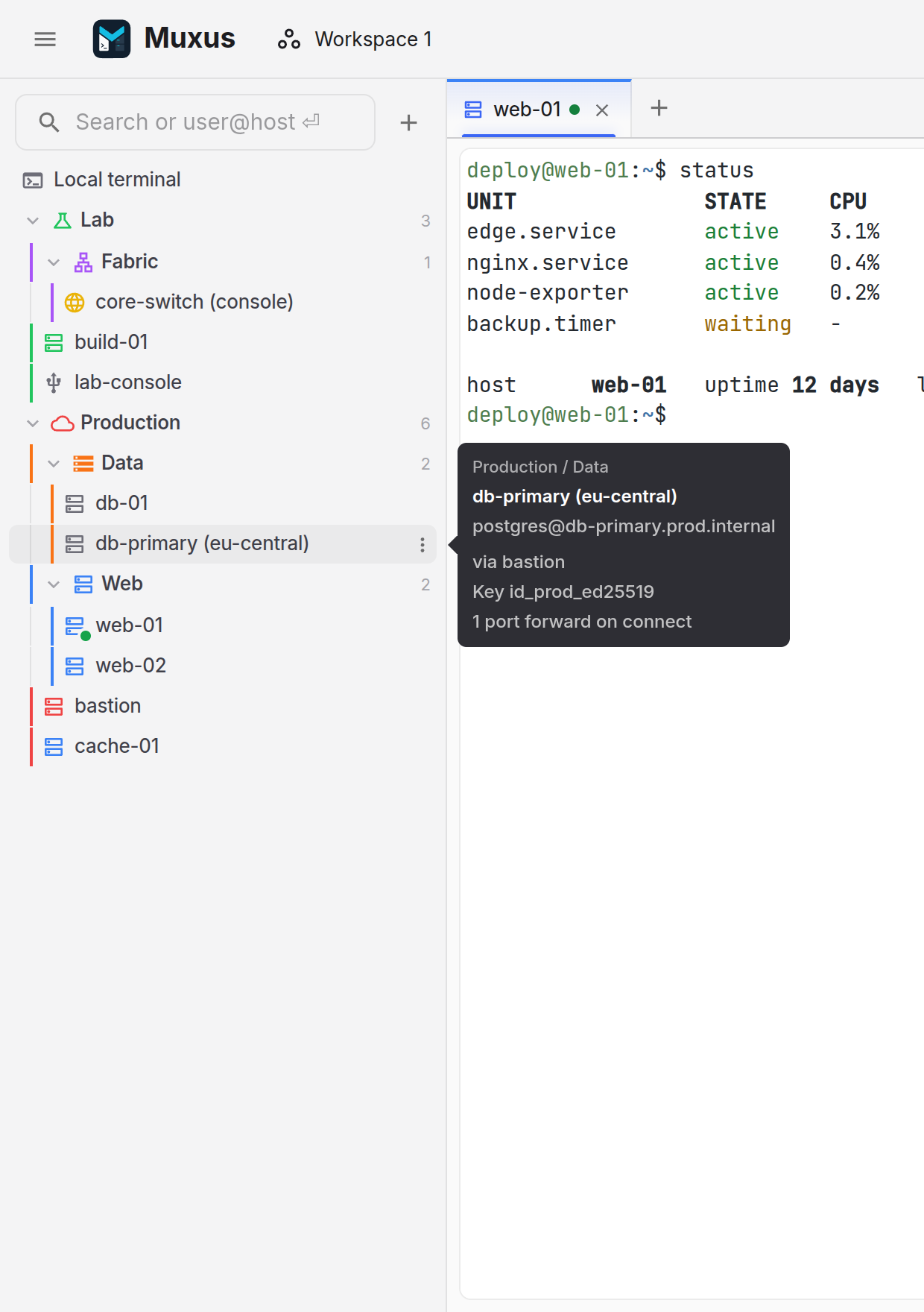
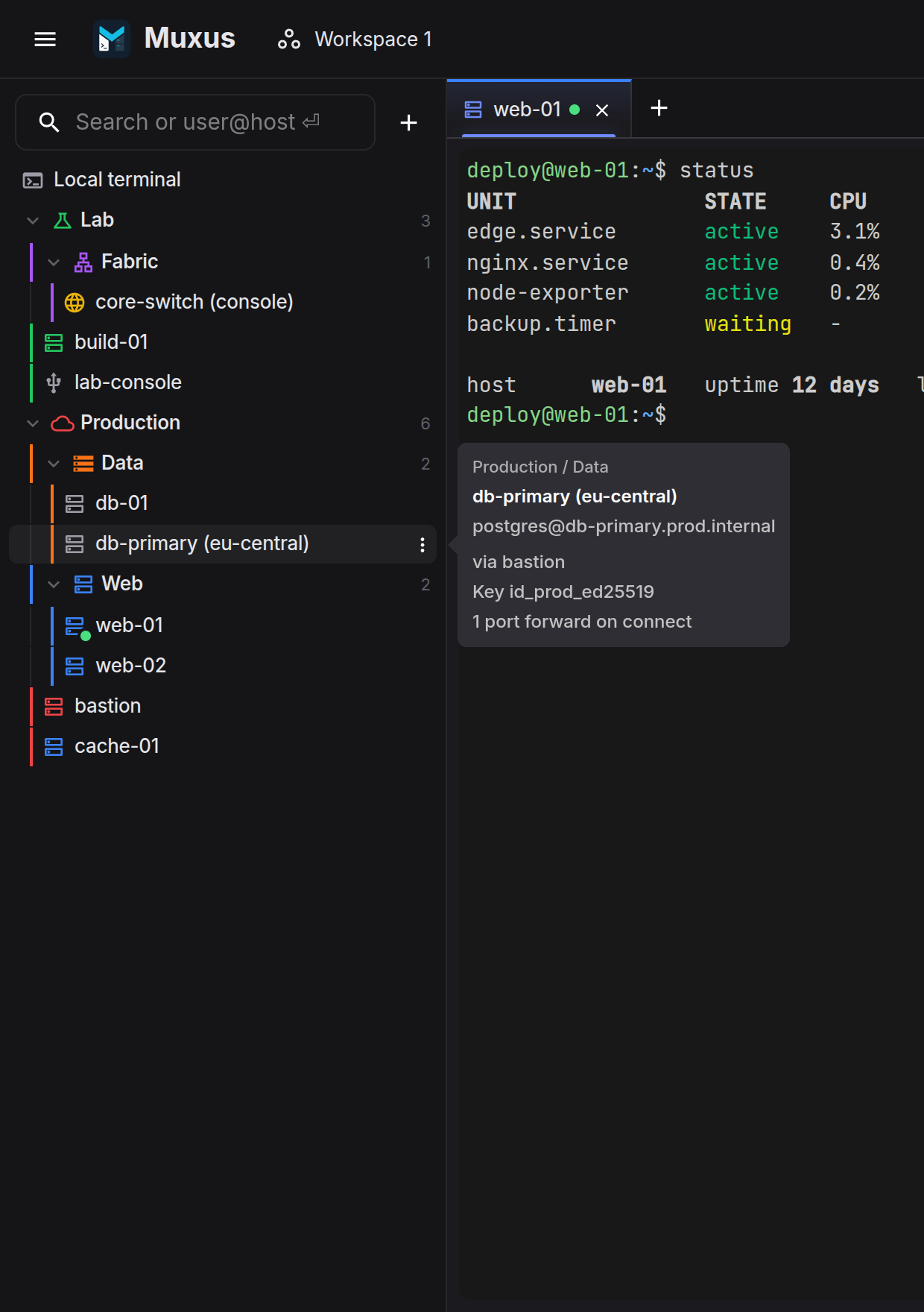
Click a host to connect. The first connection to an unknown host asks you to verify its
key, the same way ssh does. Accepting appends it to your real ~/.ssh/known_hosts.
Nothing saved yet?
The search box doubles as quick connect. Type user@host (a :port suffix works too)
and press Enter. Muxus dials it straight away, and offers to save it as a Host
block afterwards. See Your hosts.
3. Split the window
With a session open, press Ctrl+Shift+Right. The pane splits, and the new pane continues the same session. The SSH connection is reused, so there is no second login and no second password prompt.
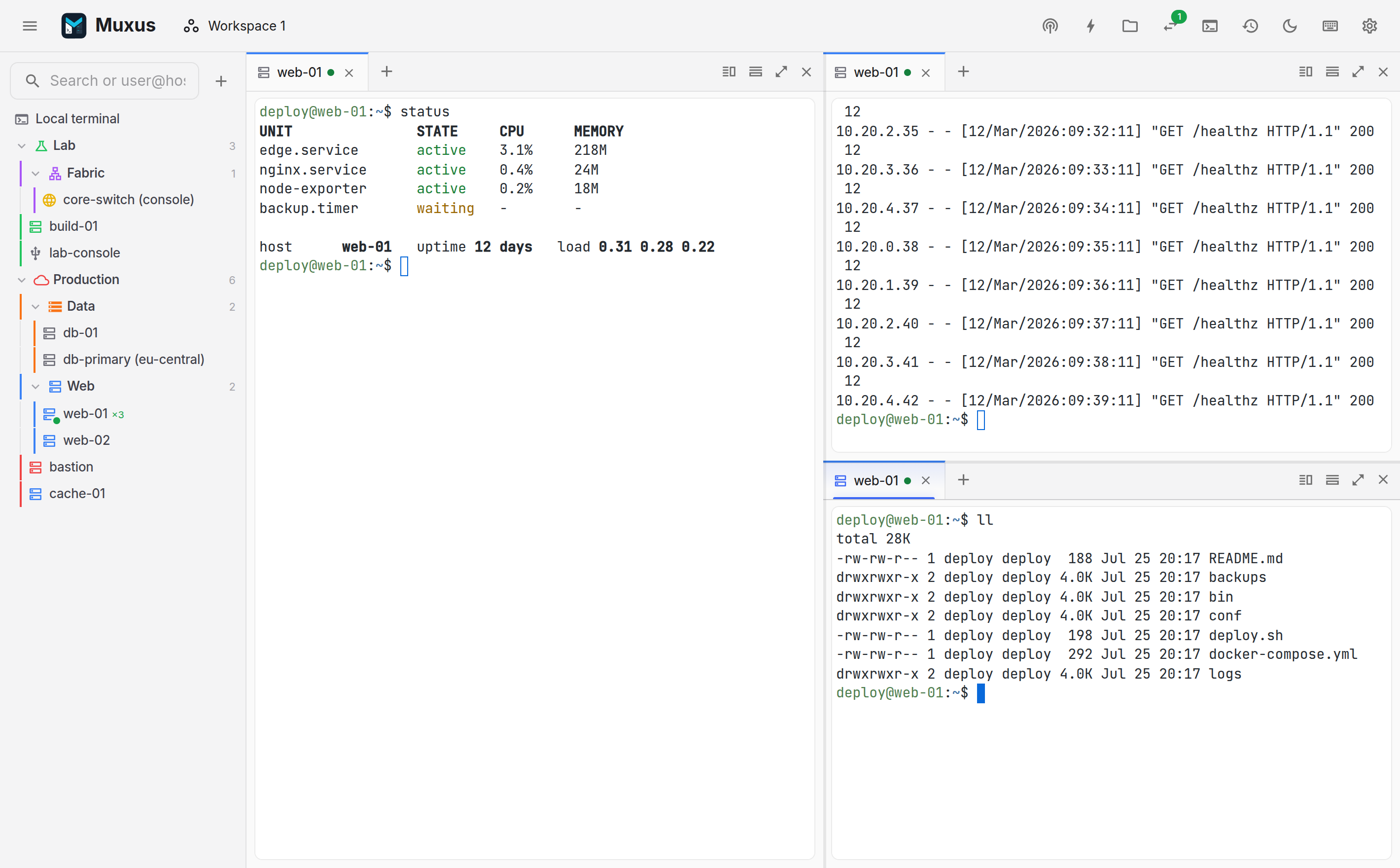
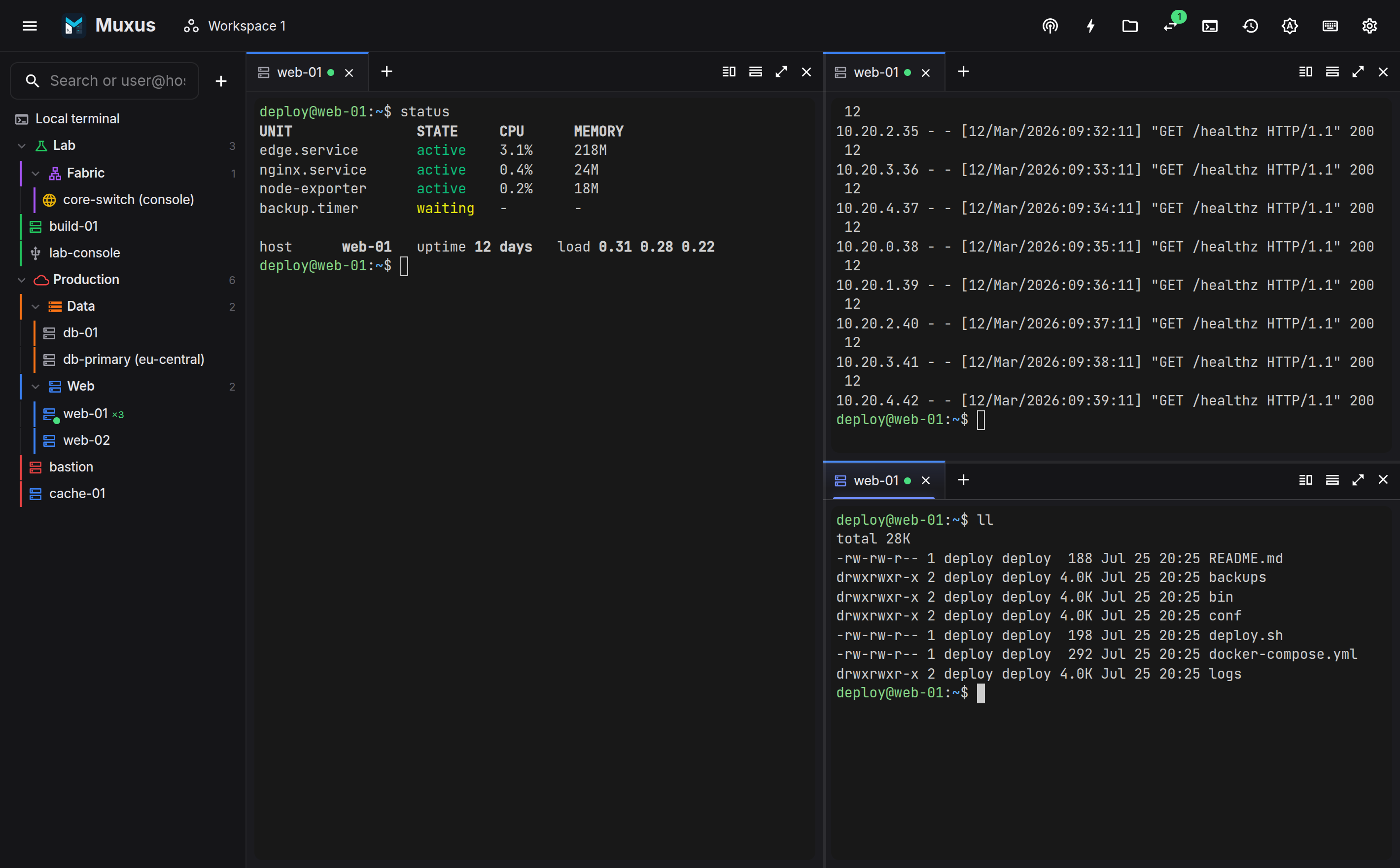
Move around with Alt+Left / Alt+Right / Alt+Up / Alt+Down (Cmd+Option and an arrow on macOS), zoom a pane to the whole window with Ctrl+Shift+Z, and close one with Ctrl+Shift+X. Nothing is taken from the shell: Ctrl+W still deletes a word, so closing a tab is Ctrl+Shift+W.
4. Open the files next to the session
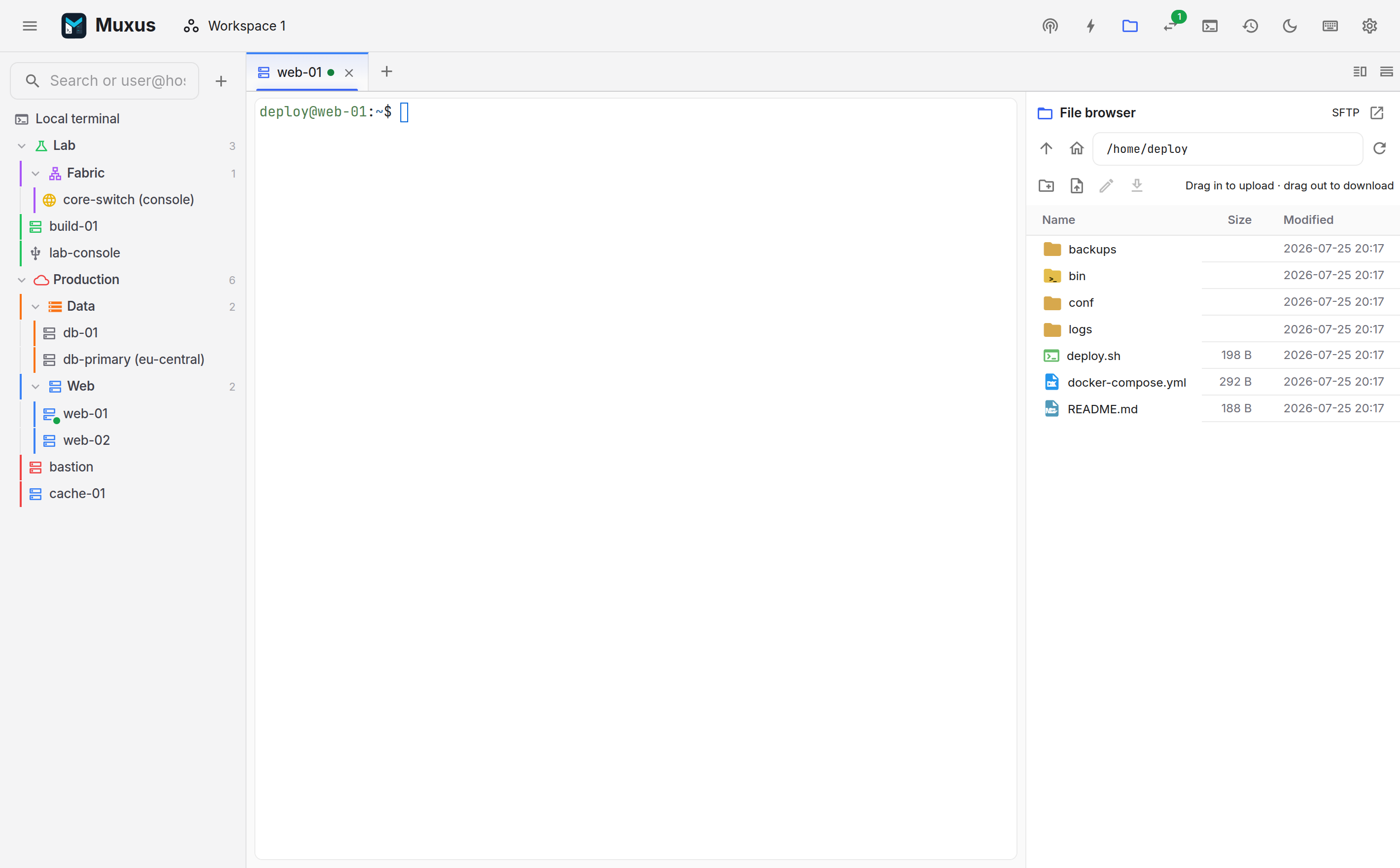
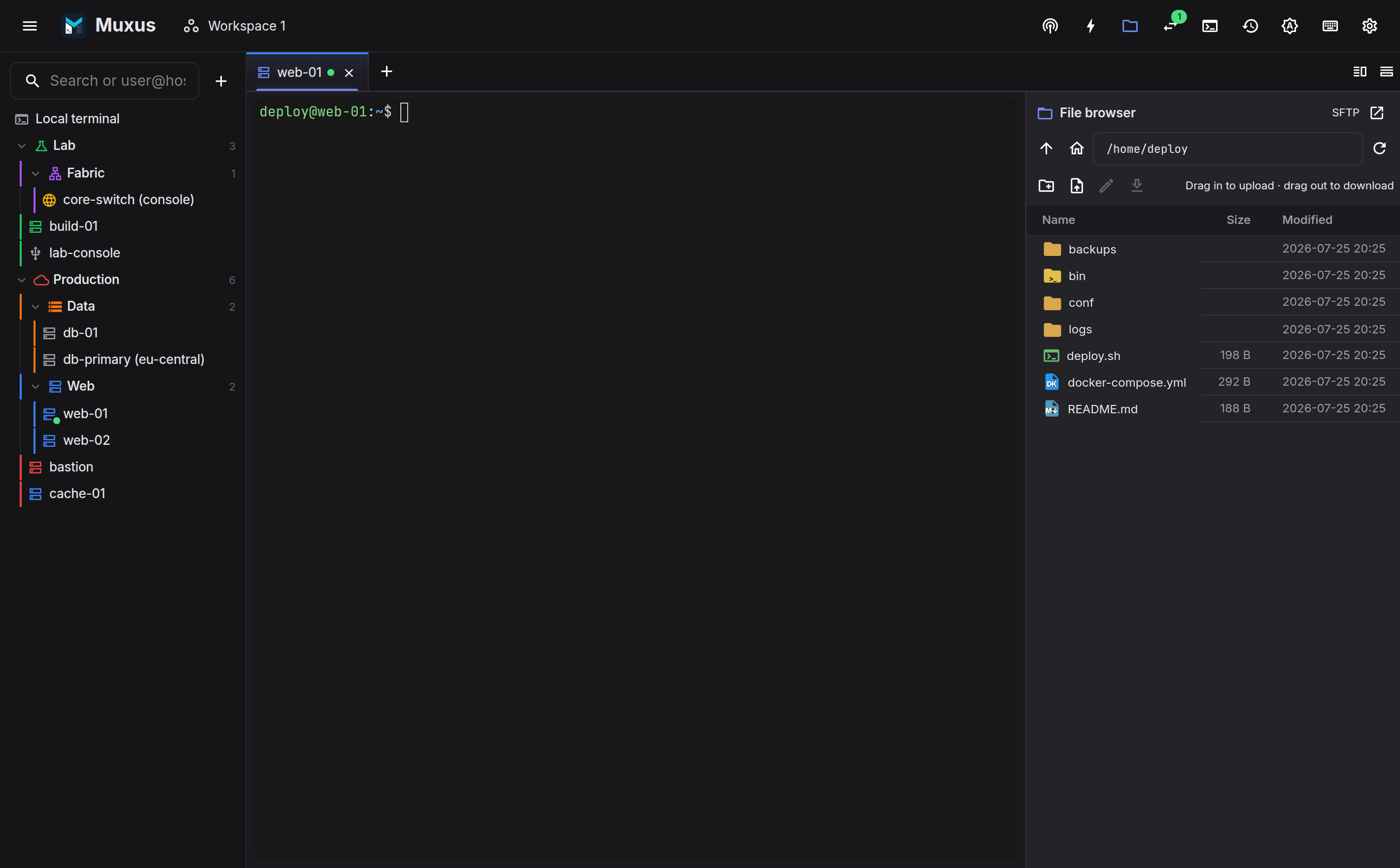
Click the folder icon in the top bar to open the file browser on the current SSH tab. It rides the session's existing SSH transport, so there is no new connection and no new authentication.
5. Drive it from the keyboard
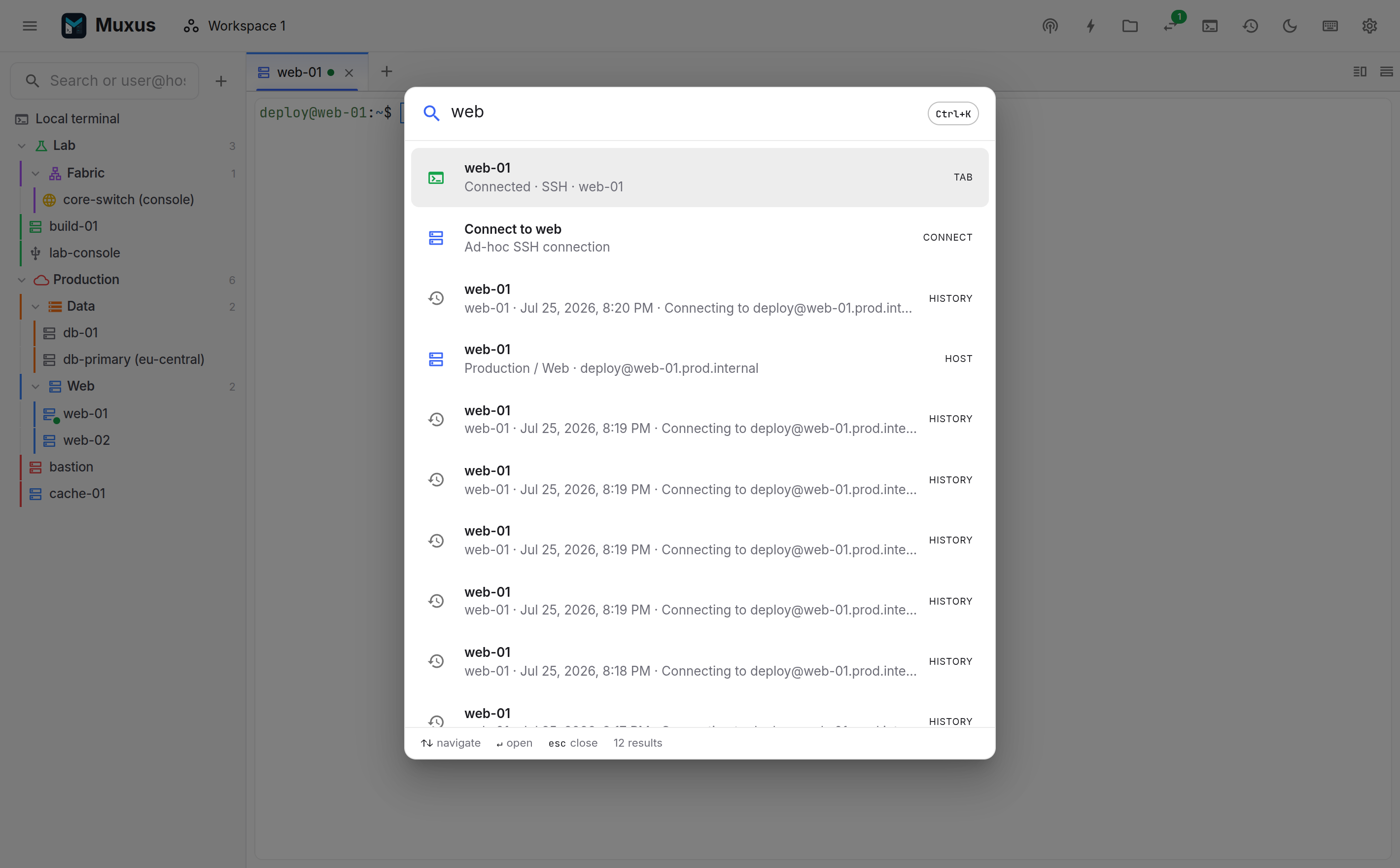
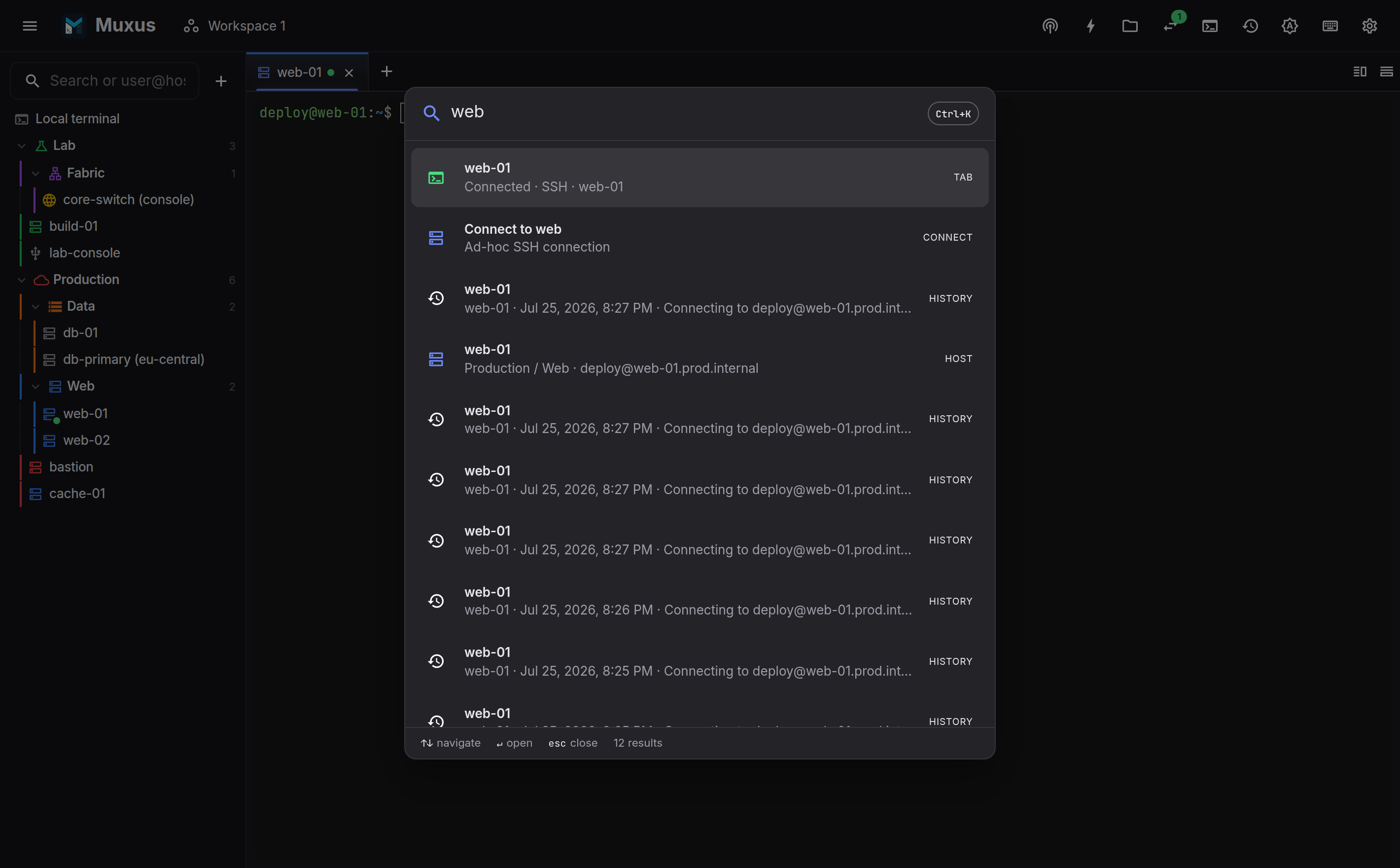
Press Ctrl+K to open the quick launcher. One box searches saved hosts, open tabs, editor files, workspaces, commands, tunnels and retained session history, and acts on what you pick: connect, switch, reconnect, open, run, toggle.
Every command lives in one keymap. Press Ctrl+Shift+/ to see it, search it, and rebind anything; conflicts are flagged and defaults restore in one click.
6. Keep the layout
Once the window looks the way you work, open the workspace menu in the top bar and save it. A workspace remembers panes, tabs, colours and multi-exec groups. Reopen it tomorrow and your local shells start fresh while remote sessions wait for an explicit Reconnect.
Where to next
-
User guide
A feature-by-feature tour: hosts, panes, the terminal, tunnels, SFTP, history.
-
Keyboard shortcuts
Every default chord, and the rules behind which keys Muxus is allowed to take.
-
Security model
What binds where, what is stored, what is never stored.