The Muxus window
One window holds the host list, the sessions, the files and the tunnels. This page names the parts referenced elsewhere in the guide.
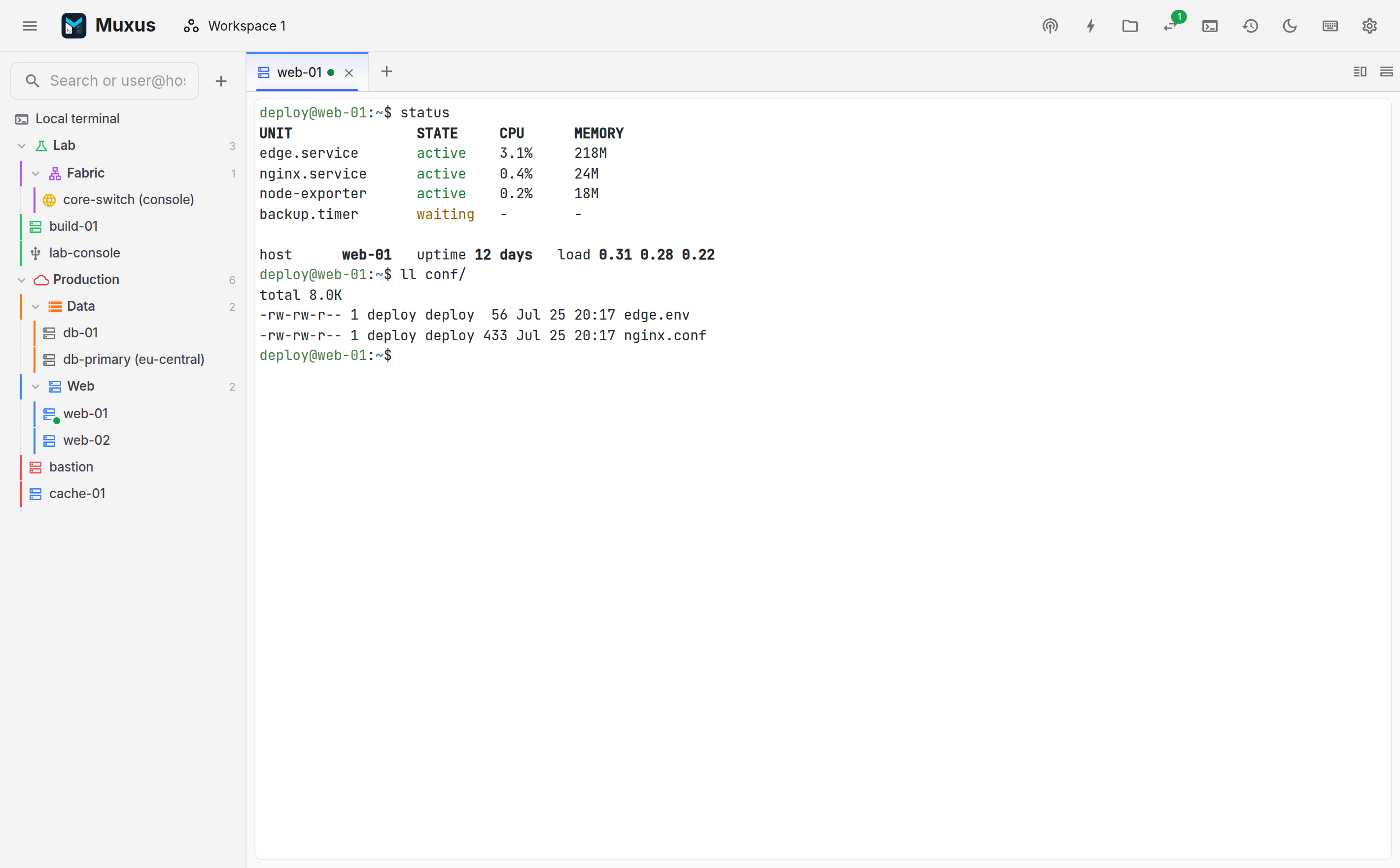
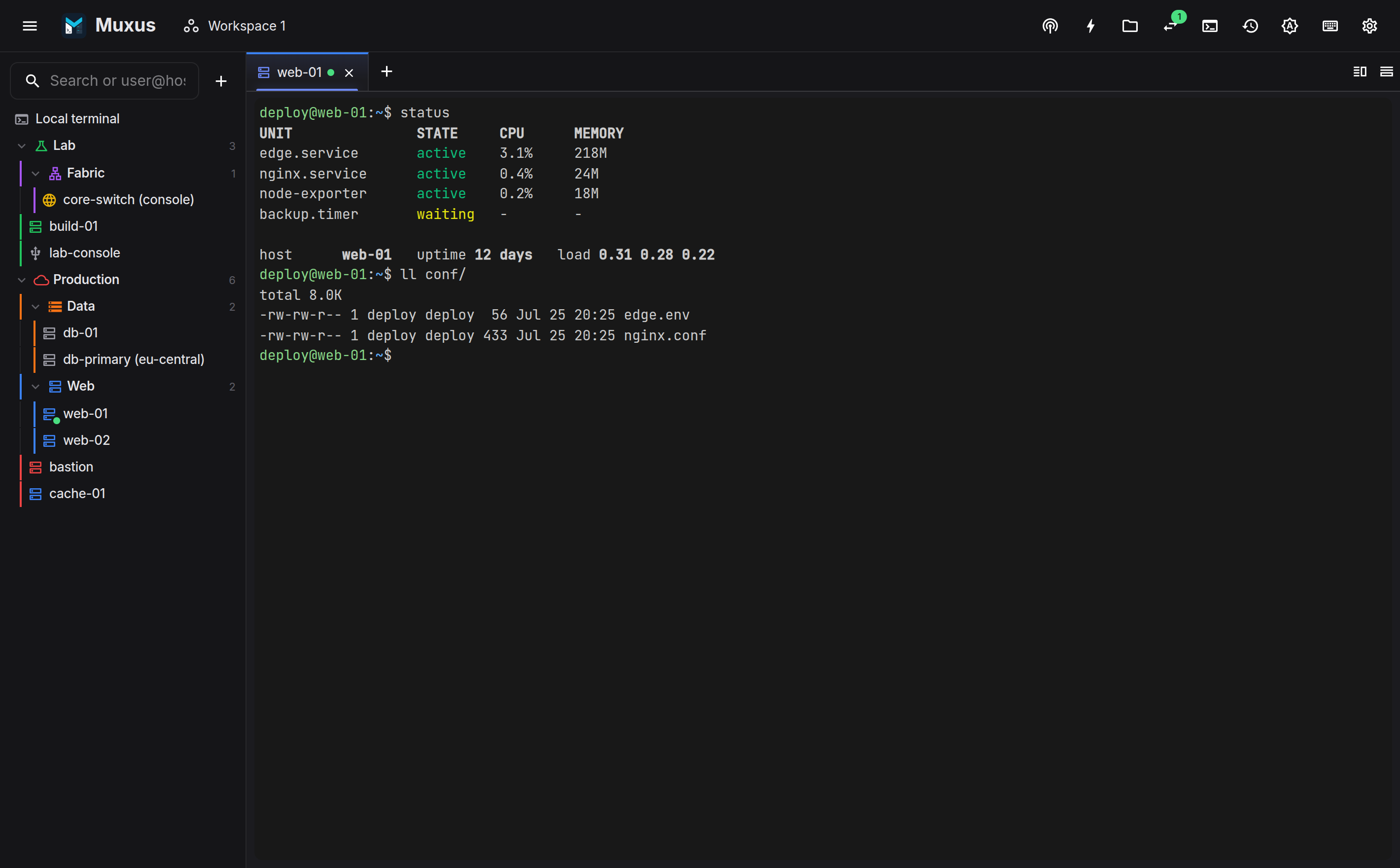
Top bar
In the desktop app the top bar serves as the titlebar. It is a drag region, and the native window controls sit inside it. From left to right:
| Control | What it does |
|---|---|
| Show/hide the hosts sidebar (Ctrl+B) | |
| Workspace name | Opens the workspace dialog: save, lock, open, rename, set a startup workspace |
| Multi-exec | Type once into several sessions at once. See multi-exec |
| Saved command buttons | |
| The file browser for the active SSH tab, beside the terminal or in the sidebar | |
| The forwarding panel; the badge counts forwards and turns amber while a tunnel reconnects or could not start | |
| Terminal actions: find, select all, copy all, export, logging, Send BREAK, send text file, clear, zoom | |
| Session history | |
| Theme: light → dark → follow system | |
| Keyboard shortcuts, searchable and rebindable | |
| Settings |
Below it, an optional action bar appears once command buttons have been saved and the bar is enabled. Each button sends its command to the focused terminal; with several command groups, a selector at its left end switches between them. The bar can also sit at the bottom of the window, below the panes.
Hosts sidebar
The sidebar presents saved hosts as a tree: OpenSSH Host blocks grouped by the file they
came from, plus user-defined folders, colours and icons. A green dot marks a host with a
live session, and a hover card shows the address, jump chain, key and auto-started
forwards. Clicking a host that already has tabs open lists them so you can jump back to
one or start another (host rows). Hosts can also
open with a double-click, leaving a single click to
select them.
The box at the top both filters and connects. Type an alias to filter, or user@host:port
to dial a target that is not saved.
The sidebar docks on the left by default. To dock it on the right, right-click empty space in the sidebar and choose Move sidebar to the right, or use Settings → Appearance → Layout. The width and collapsed state carry over, and Ctrl+B toggles it on either side.
With the file browser docked in the sidebar, a column of vertical tabs runs along the window edge: Hosts and File browser. Both share the sidebar's width, and each keeps its place while the other is in front.
Pane canvas
The centre of the window is a canvas of resizable panes. Each pane owns a tab strip, and each tab is one session: a local shell, SSH, Telnet, serial, a remote desktop, or a remote editor.
- Drag the divider between panes, double-click it to even them out, or move it with the keyboard once it has focus.
- Every tab shows a status dot (amber while connecting, green when connected, red when the transport is gone), its host-kind icon, and any colour flag assigned to it.
- Double-click a tab to rename it. The right-click menu has close, duplicate, colour flags, open in a new window and reconnect.
Panes and tabs form one system: closing the last tab of a split pane closes the pane, and moving a tab toward a direction with no pane splits one off.
Layout changes and running sessions
Panes, tab contents and dividers are siblings in one absolutely positioned layer. Reshaping the tree only moves boxes, so terminals are never unmounted. Splitting, closing and moving tabs keep every shell, scrollback and SSH channel alive.
Side panels
- The file browser opens inside the active SSH tab, to the right of the terminal, and can be popped out into its own window. It can also live in the sidebar, where it follows the active session.
- The forwarding panel docks on the right of the window and lists saved tunnels plus the forwards running on each live connection. With the hosts sidebar on the right, the panel opens between the panes and the sidebar.
Both are loaded lazily. Their code is fetched the first time the button is used.
Status bar
A bar along the bottom of the window describes the host of the active tab and refreshes every few seconds:
| Item | Shows |
|---|---|
| Host name | The name the host gives itself |
| Operating system | Distribution and version, such as Ubuntu 24.04.1 LTS; the kernel in its tooltip |
| CPU | Usage across all cores since the last refresh; the core count and load average in its tooltip |
| RAM | Memory in use out of the total; available memory and swap in its tooltip |
| Disk | How full the filesystem holding / is (the system drive on Windows) |
| ↓ ↑ | Traffic received and sent per second on the interface of the default route |
| Up | Time since the host booted |
| Users | Login sessions, as who lists them; the names in its tooltip |
The meters for CPU, memory and disk turn amber at 80% and red at 95%. Right-click the bar, or use the button at its right end, to choose the items or hide the bar; Settings → Appearance → Status bar has the same choices and brings a hidden bar back. Toggle status bar in the keyboard shortcuts can be bound to a key.
SSH sessions are read over the connection that is already open: Muxus runs a short,
read-only sh script on an extra channel, without asking for a password again and without
installing anything. Linux hosts report every item. macOS and BSD hosts report the load
average in place of CPU usage, and BSD hosts leave out memory. A host that cannot run the
script, such as a network device or a Windows server, shows This host does not report
statistics and is not asked again on that connection.
Muxus only opens that extra channel when the server already ran a command for it while the session opened. Routers and console servers that offer just their CLI are never asked, and neither are hosts with Disable SFTP and shell integration only or console compatibility mode turned on: some of them drop the whole connection when a second channel asks to run a command.
Local terminals show the computer they run on. Windows reports neither logged-in users nor network traffic.
Only the tab in front is read, and nothing is read while the window is minimised or the bar is hidden. Telnet, serial and remote desktop tabs show no statistics.
Empty panes
A pane with no tabs shows the empty state, which offers to add a host or open a local terminal. The sidebar's Local terminal row starts a PTY running the login shell in a new tab, which is also what a fresh window provides.