Workspaces
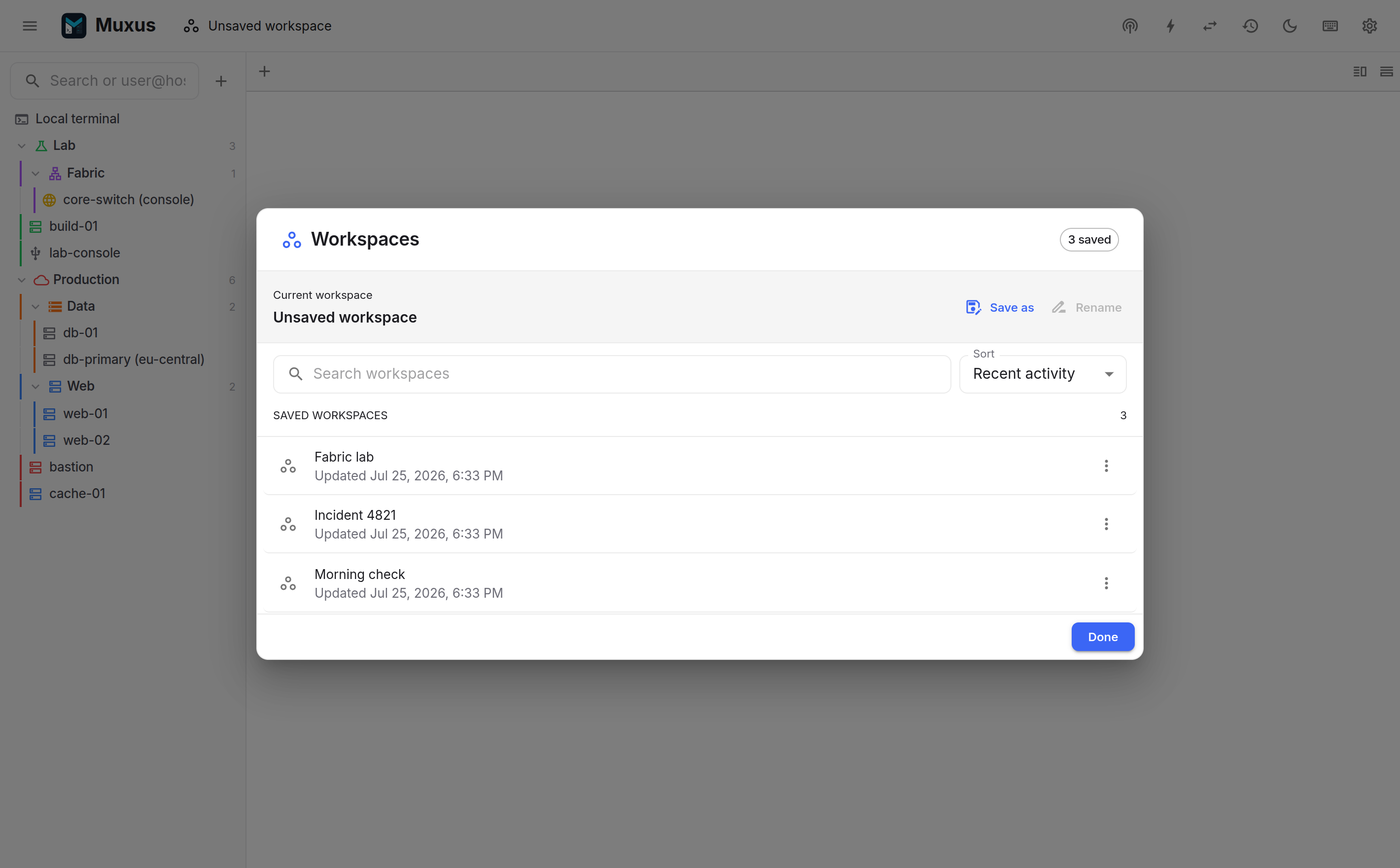
A workspace stores a window's layout under a name: the pane tree, every tab in it, their titles and colour flags, and the multi-exec groups defined in it.
Saving and switching
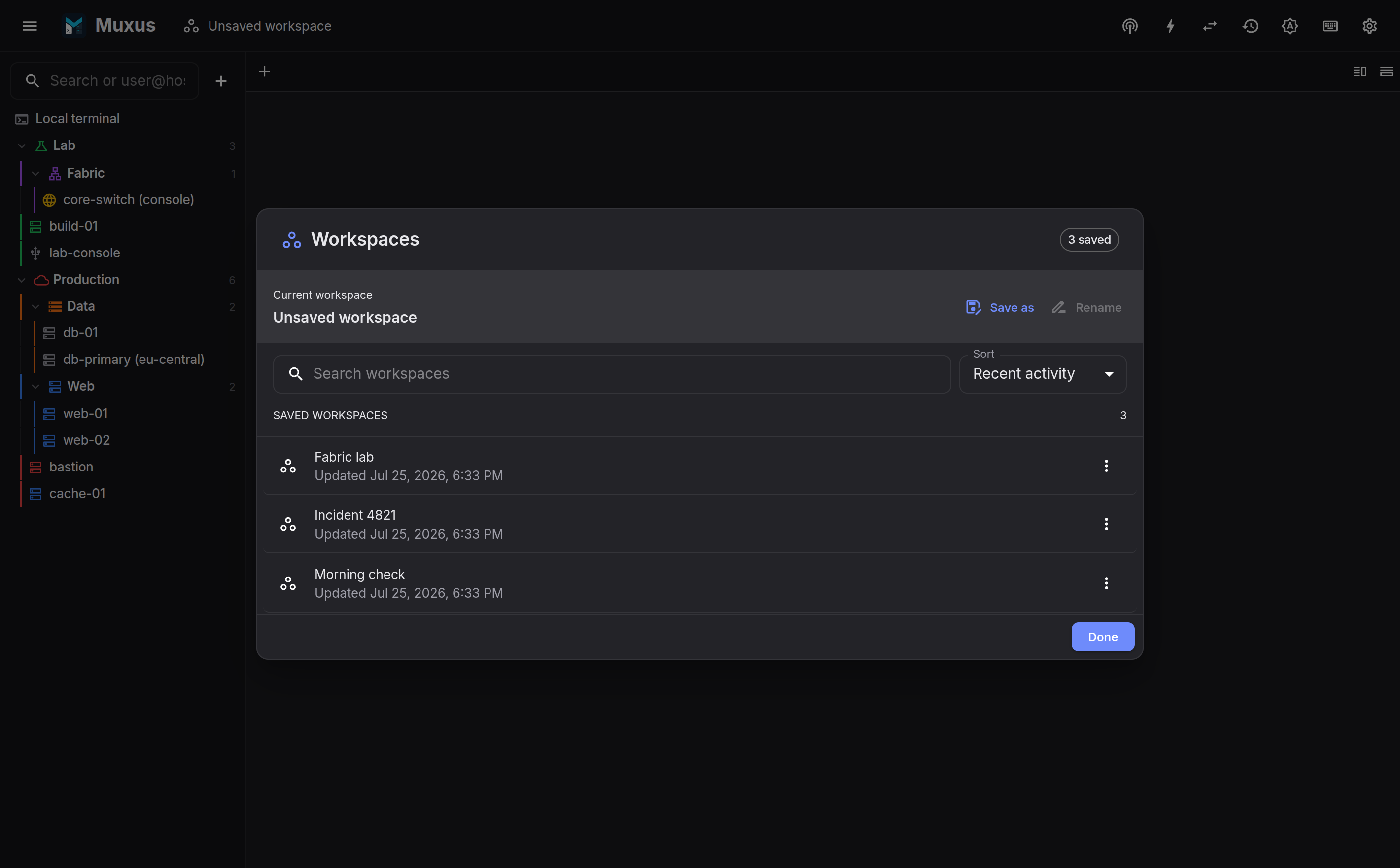
The workspace control in the top bar shows the active workspace's name and opens the dialog, which provides:
- Save the current layout over the active workspace, or Save as under a new name;
- Lock a workspace when its saved tabs should stay fixed;
- Open another workspace, flushing pending automatic changes first unless it is locked;
- Rename and delete;
- selection of the startup workspace, restored by a fresh window;
- search and sorting by recent activity, name or creation date.
The active workspace is saved continuously in the background, debounced. A window that closes with live tabs flushes its layout on exit. A locked workspace skips both automatic saves: tab and pane changes remain in the current window until you choose Save. Unlock it to resume automatic saving. This is useful for a startup workspace that should always open with the same tabs.
Unsaved layouts are still restored
The last layout is restored on the next launch even without a saved name. Naming a workspace is what allows several of them to coexist.
What restore does
By default, restore brings the whole workspace back:
- Local shells start fresh. A new PTY, in the same pane, in the same position.
- Remote sessions reconnect. SSH, Telnet, serial and remote desktop tabs are dialled again with their titles and colours; hosts that authenticate interactively prompt as usual. Restoring a layout never resumes a remote process. Use tmux or screen for that.
- Terminal history comes back. Each tab replays its recent output (about the last thousand lines, saved locally every few seconds while you work) above a dim divider; the new session continues below it. Reconnects keep the buffer the same way.
The reconnect setting also covers a session lost mid-flight: a dropped connection redials a few times with growing delays before falling back to press any key to reconnect.
Both behaviours have switches in Settings → Behavior. Turning Automatically reconnect remote sessions off restores remote tabs without dialling them, so a large layout does not trigger a set of simultaneous logins and 2FA prompts. Reconnect them individually from the tab menu, or use the workspace dialog to reconnect selected sessions or all of them. Force reconnect all replaces every SSH, Telnet, serial and remote desktop session in the current workspace, including sessions that still appear connected. It ends their live shells, so use tmux or screen for remote work that must survive the replacement. Saved tunnels keep their existing connections and are not restarted. The action is also searchable by name in the quick launcher. Turning Restore terminal history off keeps scrollback out of local storage and restores every tab empty.
Launching a set at once
Two ways to populate a workspace:
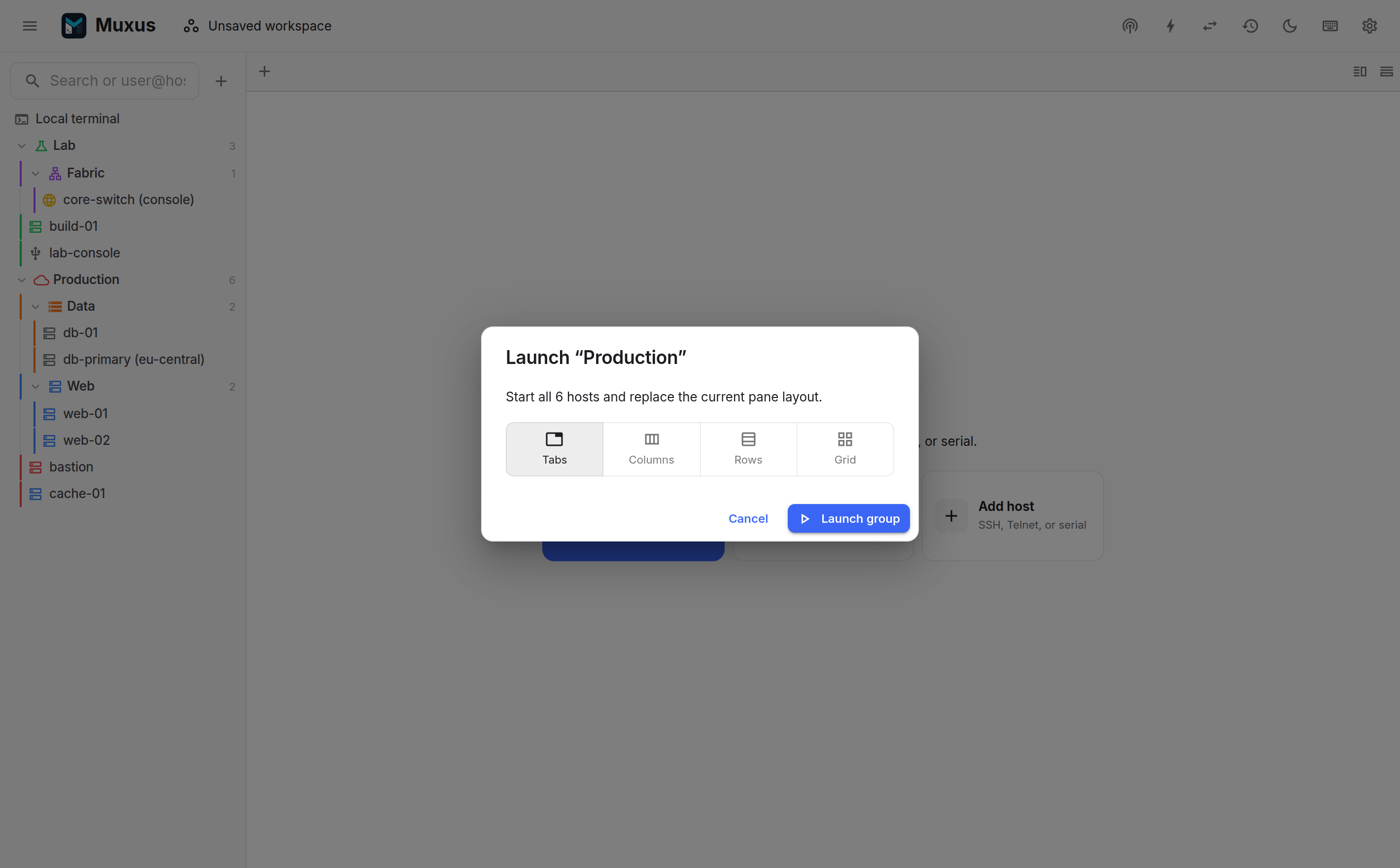
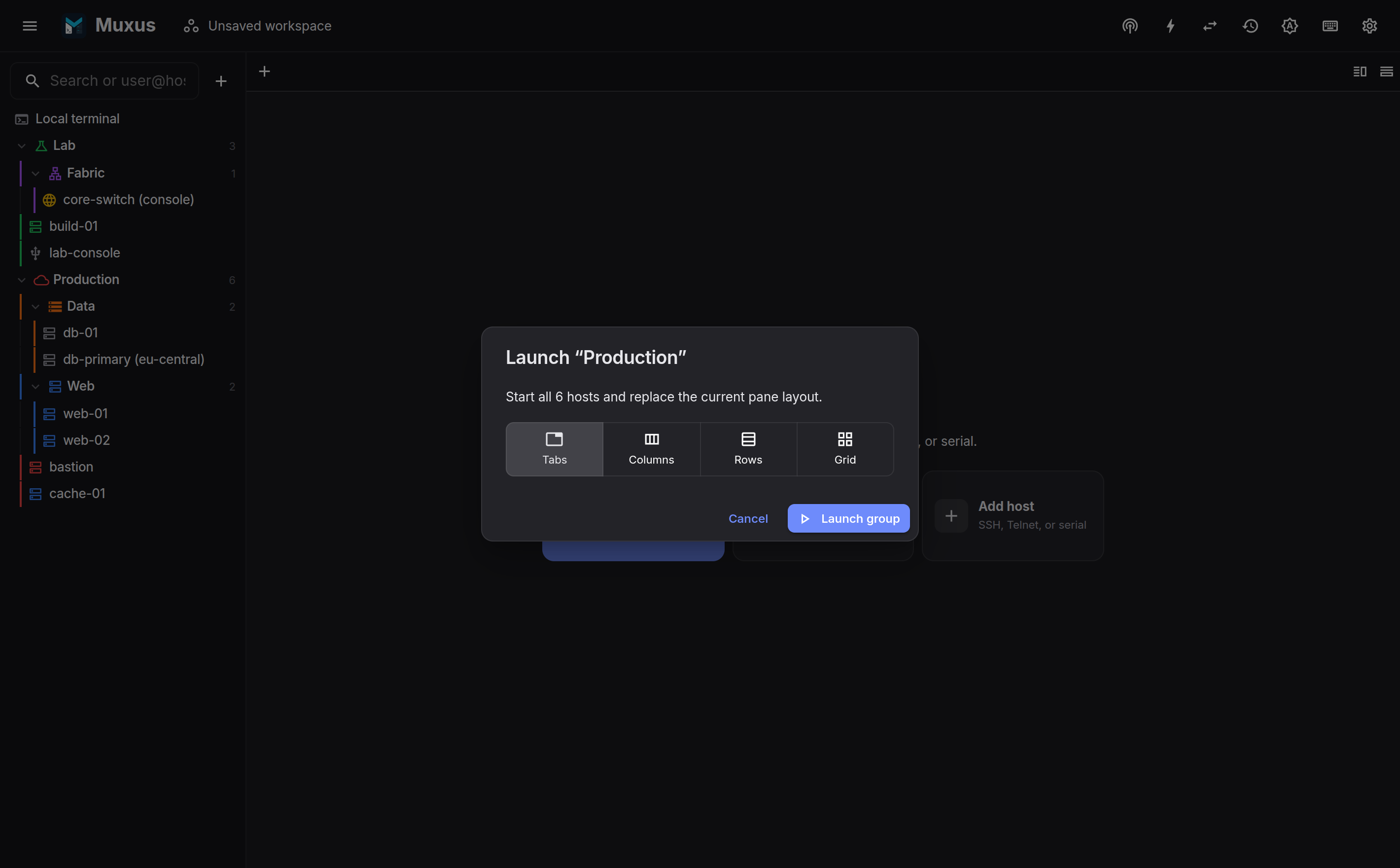
- A folder's Launch n hosts… in the sidebar opens everything inside it as tabs, columns, rows or a grid.
- Duplicate tab (Ctrl+Shift+D) opens a second session on the same host, reusing the connection.
Multi-exec groups
A saved workspace carries its multi-execution groups, and restores each group whose layout still contains at least two of its tabs.
Storage
Workspaces are stored in the local SQLite database, next to folders, colours and saved
tunnels. They are not written to ssh_config and are not sent off the machine. Terminal
history snapshots live in the same local database and are dropped when their tab leaves
every stored workspace; disable Restore terminal history to keep scrollback out of
storage entirely.